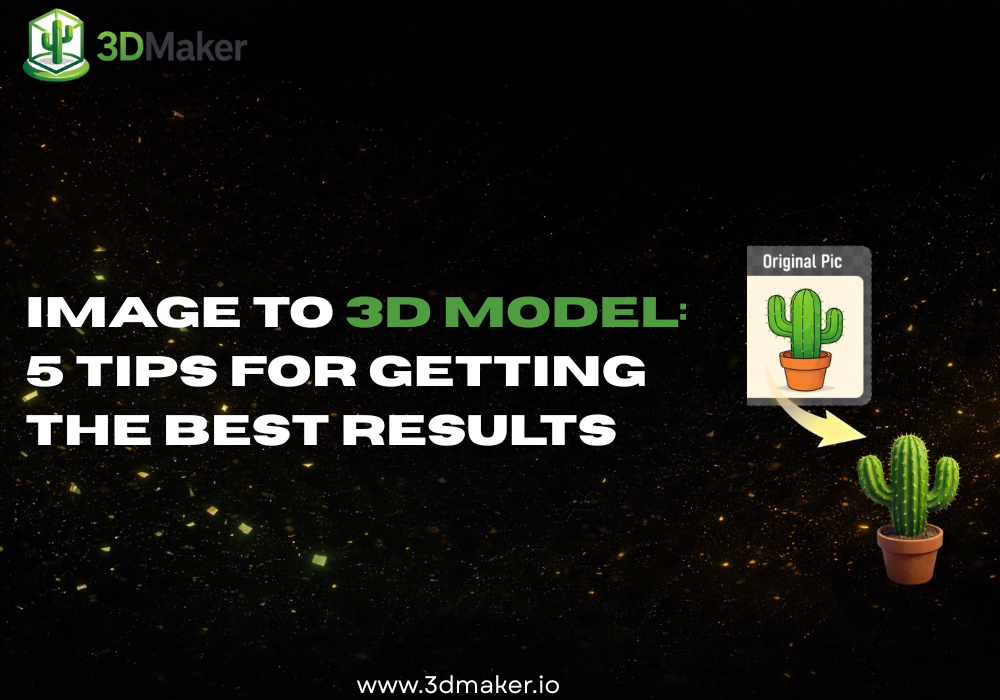
If you have ever tried converting a 2D image into a 3D model, you have probably noticed the quality can vary. Sometimes it looks amazing, and sometimes the back looks strange, small details disappear, or the shape feels off.
The good news: a few simple adjustments can dramatically improve your results. Here are 5 practical tips to get higher quality output even if you are a complete beginner.
Tip 1 - Start With a High-Quality Image
AI can do incredible things, but it still depends on the quality of your input. If you want the best possible 3D model, make sure:
- The image is sharp and high resolution
- The subject is clearly visible
- The lighting is good (no heavy shadows hiding details)
- The background is simple and not distracting
Blurry photos, dark lighting, or cluttered backgrounds make it harder for the AI to understand shapes and depth. If you are converting a drawing or logo, use a clean version with clear outlines and strong contrast.
Tip 2 - Choose the Right Tool
Not all image-to-3D tools are equal. Some tools produce low-detail meshes, others are not print-ready, and some require advanced technical skills.
For beginners and creators who want fast, reliable results, using a simple and optimized platform makes a big difference. With 3DMaker, the workflow is straightforward:
- Upload your image
- Let the AI generate the 3D model
- Preview your result
- Download in standard formats
No complex software. No CAD experience required. Choosing the right tool saves time and avoids frustration.
Tip 3 - Use Clear Front Views (And Multiple Angles If Possible)
One of the most common problems in 2D-to-3D conversion is incomplete geometry. If the AI only sees one image, it has to guess what the back looks like.
To improve results:
- Use a straight, front-facing image of your subject
- Avoid extreme angles
- If available, provide additional views from different angles
Even when using a single image, make sure the subject is centered and fully visible. The clearer the perspective, the better the AI can reconstruct depth and volume.
Tip 4 - Think About Your Final Goal (Printing, Gaming, Figurines)
Before generating your model, ask yourself: what will you use this 3D model for?
If you want to 3D print a figurine:
- Make sure small parts are not too thin
- Check that the model is solid (watertight)
- Use a print-friendly format for your workflow
If you want to use it in a game or animation:
- Choose a compatible format for your pipeline
- Check the scale
- Verify the geometry looks clean from all sides
If your goal is to create printable objects from a photo, using a tool optimized for printable output will save you extra editing later.
Tip 5 - Always Preview and Rotate the Model
Never download your model without checking it first. After generation:
- Rotate it 360 degrees
- Zoom in on small details
- Look at the back and bottom
- Check proportions
Spending 1 or 2 minutes reviewing your model can prevent wasted print time or rework.
Common Mistakes to Avoid
Here are the most frequent issues people hit when converting an image to a 3D model:
- Using low-resolution screenshots
- Cropping the subject too tightly
- Expecting perfect results from extremely complex images
- Skipping preview before download
Final Thoughts
Converting an image to a 3D model has never been easier. What used to require professional 3D artists can now be done in minutes with AI.
The quality of your results depends on:
- The quality of your image
- The clarity of your subject
- The tool you use
- A quick review before finalizing